

Facebook recently implemented a bidding system for promotional messages sent to a business page’s Messenger subscribers. The reason? Not to bombard and fatigue the end user with needless messaging. (Not AT ALL about making ol’ FB even more moolah.) Mark’s pockets notwithstanding, if you want to send a message, you need to ensure you have over 1000 existing conversations or subscribers in your chosen audience. All set? Then using manychat, you will need to configure a keyword trigger to start your flow.
Once you’ve nailed that…
Create a sponsored message campaign
Here are a few simple steps to creating a sponsored message campaign for Facebook messenger through Facebook for Business.
- Go to Ads Manager then Guided Creation, and click on Create ad.
- In the Consideration column, select the Messages objective.

- Create a campaign name and choose if you want to split test or use campaign budget optimisation (generally with single messages, these options can be left unchecked).

- Click Continue.
- Only one sponsored message will be delivered per person, per ad set. These campaigns will work with a single ad set.
- Enter the Ad set campaign name; this set-up assumes a single ad set.
- In the message destination section, select the Sponsored Message drop down.

- You will then need to select the page you want to associate with the ads.

- Under audience, select your audience set-up to target Messenger subscribers – for simplicity, we name this audience “Messenger subscribers”.
- In this example, we have also refined the audience to target only people in Australia.

- You can further drill down this target audience, but to reach the largest available section of your audience do not add anything else here.
- Sponsored messages will not be sent to conversations that have been active in the past 24 hours or inactive for over six months.
- In the Placements section, you will see that the placements have been automatically selected to target Messenger only.

- Scroll down the page to the Budget & Schedule section.
- Choose your budget – you will have to tweak the budget on a campaign-by-campaign basis to ensure the bid amount for the Messenger placement is not too low.
- Ensure you apply start and end dates.
- Review lifetime or daily budget to reflect the current audience size
- e.g. at $30 per 1000 impressions an audience of 10000 would require at least $300 lifetime budget.

- Upping the bid slightly will clear the error.

- Click Continue.
- Name your ad in line with the campaign.
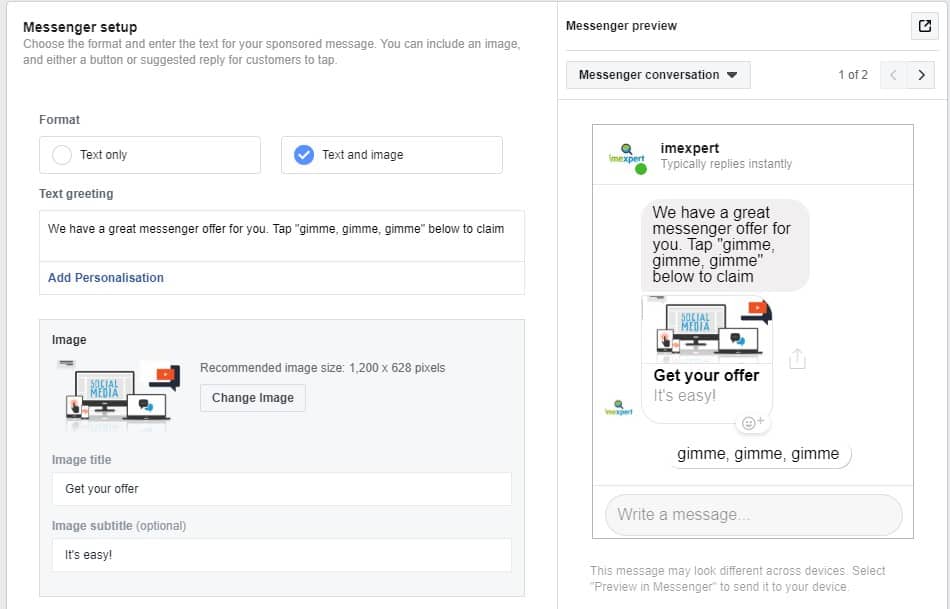
- Select a text only or choose text and image.

- Then type your message and, if you selected the image option, upload your image.

- The last option is to “Show advanced options” – click this link to reveal a drop-down menu.

- Check to see if your pixel is configured and turned on, if it is not… turn it on.

- You can now either review the campaign or click Confirm.

Your Facebook sponsored message campaign is now ready to go.
Up next: